Registration and Scanning
Registration
Program registration is required by Federal and State regulations. A registration procedure must be followed to ensure participants’ information are entered into the program’s database.
- Registration Form (1367)
- SNP uses registration form to enroll eligible participants and volunteers under 60 years old in the program. The paper form is available at the meal site in several languages including English, Chinese, Japanese, Korean, Portuguese, Spanish, and Vietnamese. The form is also available online in English, Spanish, Chinese and Vietnamese at www.sccgov.org/snpsignup.
- Accurate completion of the registration form is very important. It allows SNP to keep current records of the clients served, frequency of service received, nutritional risk information, and other relevant information.
- The SNP will process completed forms received from the congregate sites.
- Each eligible participant will be assigned a barcode registration number affixed to a Gold Card.
- Barcode registration numbers will be provided to nutrition volunteers under 60 years old. Volunteers’ barcode numbers will be added to the Monthly Service Roster. Gold Cards shall not be issued to volunteers under 60 years old.
- The barcode label and Gold Card will be used for program monitoring purposes.
- Program funding and meal reimbursements rely on the number of registered clients SNP serves. Participants should be encouraged to complete all sections on the form.
- CONTRACTOR must have the participant complete a registration form with participant’s information by the second site visit. Registration forms must be submitted to the designated COUNTY staff person at least monthly for registrants from the prior month along with the Monthly Report. CONTRACTOR must submit any new monthly registrations prior to the fifth (5th) working day of every month.
- In case of a power outage, data will be retrieved remotely by SSA Web team.
- Restaurant Meal Program (RMP) Registration via Choosing Healthy Appetizing Meal Plan Solutions for Seniors (CHAMPSS)
- Participants can register online or in-person at congregate site that oversee the program.
- Participants must bring government-issued ID to the congregate site for age verification before gold card can be issued.
- Eligible clients will receive the SNP Registration Card and a CHAMPSS card for use when visiting participating restaurants.
- Registration Form (1367) - Workflow
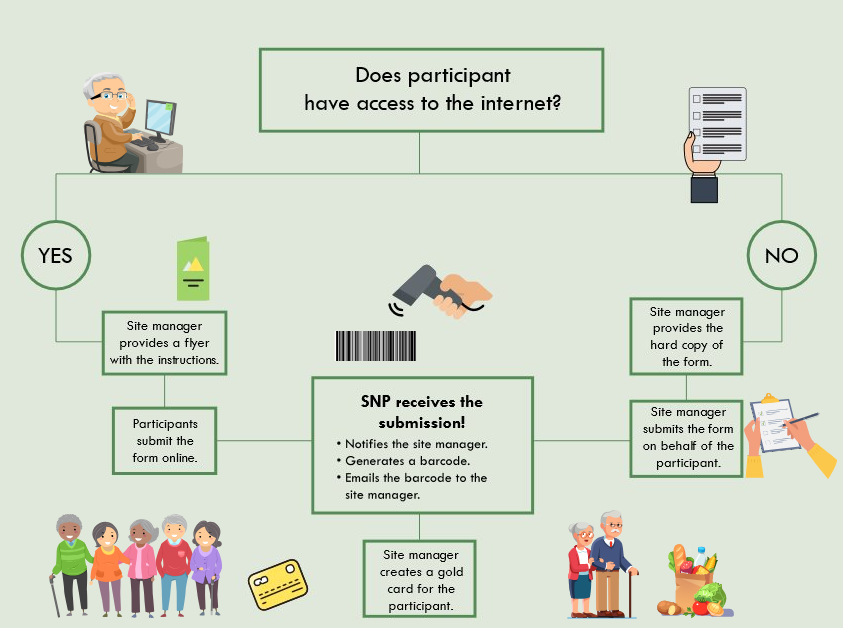
- Participant will be given a choice to submit the registration form either electronically or via paper.
- If a hard copy of the application is submitted, it is the responsibility of the site personnel to forward the registration form electronically to SNP.
- Once the application is received electronically at the SNP office, a barcode will be generated and provided to the site personnel. All barcodes should be placed on the SNP gold card and laminated.
- Laminated gold card with barcode can then be distributed to the participant.
- Sign-In Policy and Procedure
- Per state requirement, clients are required to sign-in when they dine-in or receive meals from a Senior Nutrition Program (SNP) site. The sign-in sheets help the program verify meals provided to registered clients. Site manager and/or designated staff must maintain daily records that accurately reflect center attendance. The sign-in sheets serve as the official back up for the meals invoiced to the county. As such, all sign-in sheets must match scanner data and invoices. SNP staff will monitor and review the sign-in sheets during quarterly and/or annual evaluations. These records are legal documents and must be maintained a minimum of three (3) years and/or longer if directed by the SNP. (OAA Sign-in Sheet)
- Restaurant meal program's clients will sign-in online.
- Registration Station
- A client’s first encounter with SNP is at the registration station situated at the entrance of the site or dining room. For this reason, a uniform registration process throughout SNP sites will benefit both the staff and most importantly the participants who attend SNP sites. The registration station shall consist of:
- Sign in sheets
- Monthly service roster
- Contribution box
- Scanner
- The restaurant meal program's registration station shall consist of an electronic device such as an iPad, tablet, or smart phone to be used for:
- Sign-in
- Scanning of meals
- A client’s first encounter with SNP is at the registration station situated at the entrance of the site or dining room. For this reason, a uniform registration process throughout SNP sites will benefit both the staff and most importantly the participants who attend SNP sites. The registration station shall consist of:
- Registration Process on Site
- New Older Adult
- Complete a hard copy form or via online at www.sccgov.org/snpsignup
- Sign the sign-in sheet
- Direct the older adult towards the contribution box (suggested contribution is $5.00)
- Clients under 60 eligible through Senior Housing (only Stevenson House, John XXIII, or Northside)
- Complete a hard copy form or via online at www.sccgov.org/snpsignup and check SENIOR HOUSING
- Sign the sign-in sheet
- Direct the client towards the contribution box (suggested contribution is $5.00)
- Spouse (under age 60 are eligible if their spouse is enrolled in SNP)
- Complete a hard copy form or via online at www.sccgov.org/snpsignup form and check SPOUSE
- Sign the sign-in sheet
- Direct the client towards the contribution box (suggested contribution is $5.00)
- Link to online registration form is also available via QR code.

- Returning Older Adult (with Gold Card)
- Scan their gold card
- Sign the sign-in sheet
- Direct the older adult towards the contribution box (suggested contribution is $5.00)
- Returning Older Adult (without Gold Card but already completed a registration form)
- Sign the sign-in sheet
- Record name and Date of Birth (DOB) in New Client Log list
- Direct the client towards the contribution box (suggested contribution is $5.00)
- Volunteer (under 60)
- Complete a registration form available at the meal site (only name, DOB, zip code) and indicate VOLUNTEER
- Scan their name from the roster sheets (available after they complete a registration form)
- Sign the sign-in sheet
- Direct the volunteer towards the contribution box (suggested contribution is $5.00)
- Gold cards will not be issued to volunteers under 60 years old
- Guests (under 60)
- Sign the sign-in sheet
- Guests pay fees established by the agency
- Guest fees do not go in the contribution box and are kept by the agency.
- New Older Adult
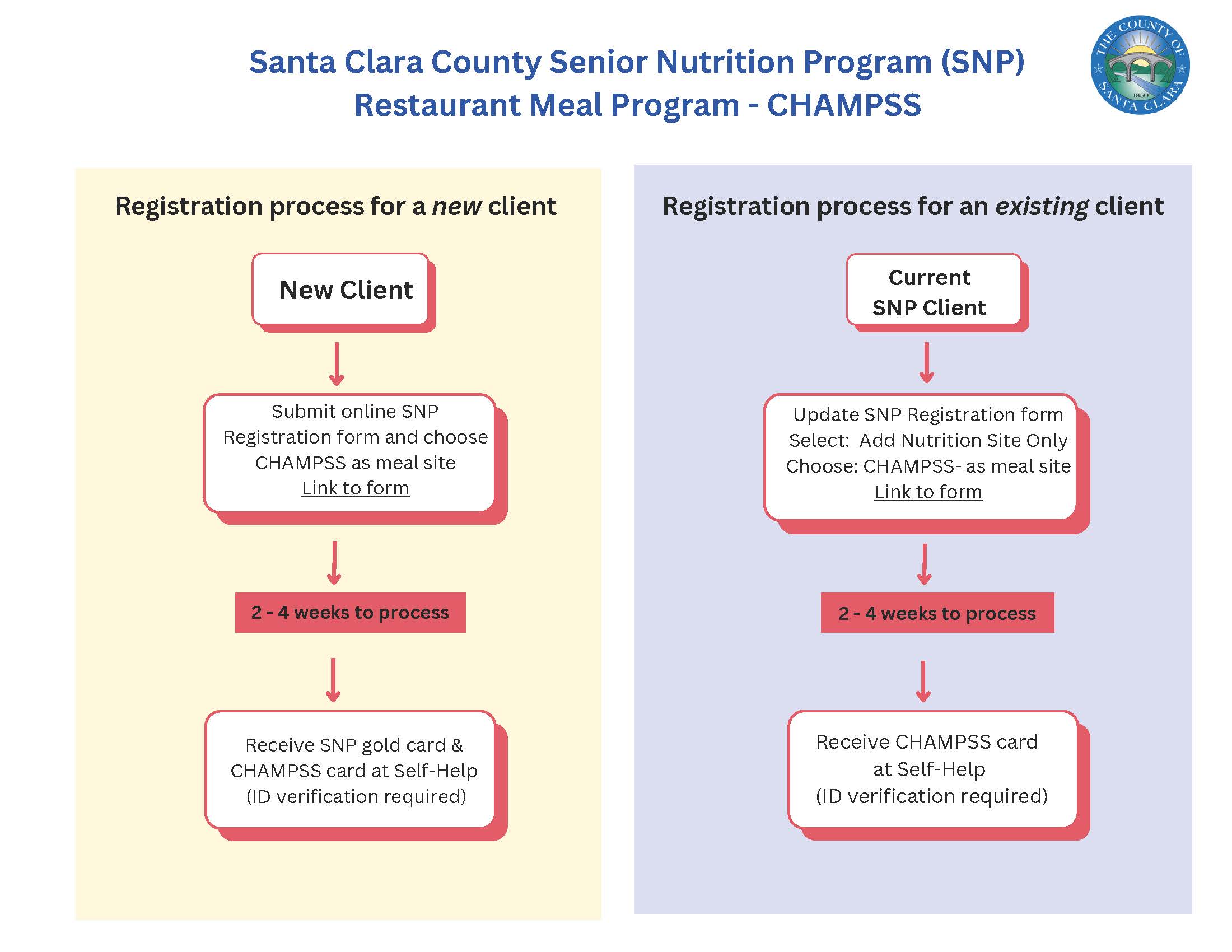
- Restaurant Meal Program Registration Process for CHAMPSS
- Refer to workflow process to register New and Current SNP Clients.
- The Seniordine or equivalent software will be used to track meals served through CHAMPSS.
- Things to Remember
- Sign-in process is mandatory for all registrants, volunteers, visitors, and guests.
- Sign-in sheets must be either separate for each contract, service, or funding type or coded to indicate the service provided.
- An eligible person not listed on the roster can still participate in the meal program if meals are available.
- No later than the second time an eligible participant attends a congregate meal site operated by CONTRACTOR, CONTRACTOR must have the participant complete a registration form with participant's information. Registration forms must be submitted to the designated COUNTY staff person at least monthly for registrants from the prior month along with the Monthly Report. CONTRACTOR must submit any new monthly registrations prior to the the fifth (5th) working day of every month.
- Clients who attend a new site but are already enrolled in the program DO NOT have to register again; instead, they should be listed on the monthly service roster with a note to SNP staff to ADD CLIENT TO ROSTER. This change can also be requested either by site manager or the participant directly via www.sccgov.org/snpsignup
- Volunteers under 60 years of age who are registered shall be manually scanned from the Monthly Service Roster.
- If the spouse of an older adult (enrolled in SNP) is under the age of 60, the spouse is eligible for the program. However, the spouse must be accompanied by the enrolled older adult.
- Annual update of the Nutrition Risk Assessment is required for all participants.
- Annually, eligible participants in the SNP are required to update their nutrition status (Form: Nutrition Risk Assessment). All forms are to be submitted to the SNP office.
Scanner Process
- Scanning Portal
- SNP uses an online website to collect scanning data each month which automatically transmits data to SNP without the need for a monthly download.
- The scanning portal is found at: https://snpscanner.sccgov.org. Login credentials are available from the SNP Analyst at (408) 304-9673.
- Information on how to log in to the scanner portal is available in (Form: Scanner Portal.)
- Participating CHAMPSS restaurants are required to use the Seniordine software to scan daily meals served. Seniordine is managed by Self Help’s staff.
- Technology Requirements
- The scanner portal must be accessed by a newer iOS-based device, such as an iPhone or iPad, using the Safari browser. The iOS must be updated to the newest version available and camera access must be enabled.
- The portal may be accessed using cellular data or Wi-Fi but a strong signal is required in the scanning area. Every day, a speed test should be performed prior to meal service. A speed test can be found using the google website.
- Scanning Tips
- Scan in a well-lit area with no shadows on the Gold Card.
- Keep the device steady and consider using a stand with a strap or case.
- When scanning barcodes, move device up and down slowly with the barcodes in the scanning window to allow time for the camera to focus.
- Barcodes can only be scanned once per log in. If you need to scan someone a second time, log out of the portal, completely close the browser, reopen and scan the individual a second time.
- The scanner counts the number of successful scans for the log in session and device. If you are scanning with two devices, or log out and log back in, the counter will reset and not read the total number of scans for the day.
- Gold cards that are damaged, dirty, stored in sleeves, or placed in zipper bags may not scan properly. Take Gold Cards out of sleeves and lay flat for scanning. Damaged Gold Cards or ones that are hard to scan can be replaced. Contact the SNP's Registration at (408)755-7659 to request replacement barcodes.
- Scanning Recommendations
To ensure monthly meal counts are accurate:- At the end of each log in session for each device used, record the number.
Note: If a device is idle for too long, it may logged out unexpectedly. To prevent this, log out and track the number you currently have. - During client registration, keep track of the sign-in sheets.
- Site Manager must track the number of “new” older adults who have submitted a new registration form but have not been assigned a label and/or a gold card since they will not be able to be scanned.
- At the end of the day, compare the number on the scanner for each log in session and device, and the number of people who signed in on the sign-in sheets to the total number of meals served. (This will help identify number of meals were served versus the number of people who registered).
- At the end of each log in session for each device used, record the number.
- Miscellaneous
- For laminating pouches, please contact the SNP Administrative Assistant at (408)755-7686.
- For any questions directly related to registration or scanning procedures (scanner malfunctions, registration form, lost meals cards), please contact the SNP Registration at (408)755-7689.
| If the scanner portal is not working properly, please call SNP Registration: (408)755-7689 |
Meal Card Management Instructions
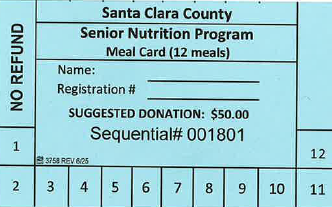
Congregate sites may request meal cards from the SNP office. These meal cards can be used in place of participants’ contributions. The suggested contribution for each meal card is $50 which is equivalent to 10 meals plus two additional (free) meals (see Contribution Policy). To obtain meal cards from SNP, follow the instructions indicated below.
- Meal Card Requisition
- Site Managers may contact the SNP Administrative Assistant at 408-755-7686 or Dieuly.Nguyen@ssa.sccgov.org to request Meal Cards.
- The Administrative Assistant mails the cards to the sites directly and sends Site Manager an email notice with date sent, total number of cards, the sequence of numbers, etc.
- Site Managers send confirmation of receipt of meal cards via e-mail to the Administrative Assistant.
- Meal Card Log and Auditing
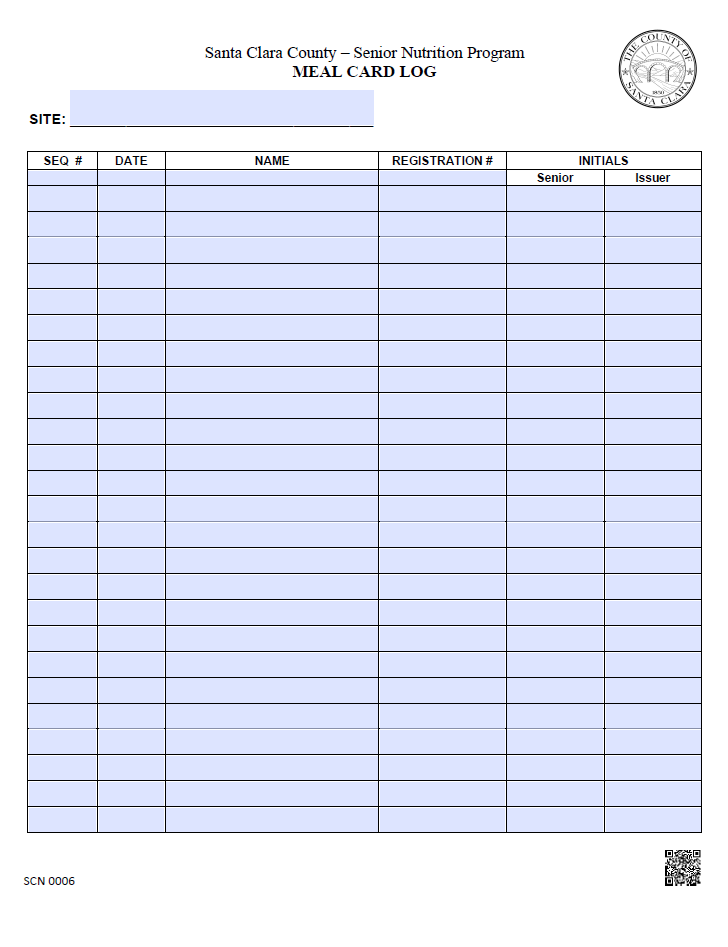
- Use the Meal Card Log (Form: Meal Card Log) to track all cards provided to eligible participants. The number on the back of each meal card should correspond with the sequence number listed on the log.
- At the end of each quarter (September 30, December 31, March 31, and June 30), send all log sheets to the SNP administrative assistant via e-mail, Dieuly.Nguyen@ssa.sccgov.org or fax (408) 975-4830 .
- Sites should keep the Meal Card Log sheets for SNP's review or audit.
Numbering System Guideline
It is recommended that each site establishes a system to track the number of older adults that participate in the lunch program. The following guideline can be used to track daily meals served at the site:
- Older adults will obtain a number card as they sign in. A guest who paid a fee is also issued a number card. Each site may create numbered cards for this purpose.
- Cafeteria line meal service system:
Older adults will deposit their number cards in a small container (such as a box or basket) before they pick up their meals from the self service cafeteria line. - Service at the table system:
Volunteers and/or staff will pick up the number cards from the older adults as they are served their meals at the table.
- Cafeteria line meal service system:
- Participants who do not have a number card will be requested to return to the registration desk to obtain one. No older adult will be refused a number card or denied a meal if they decline to sign in, or if they do not give a suggested contribution. As a remedy, the Site Manager or volunteer assigned to the desk can sign-in for that person with the word “declined” and with his/her initial.
- Volunteers and staff 60 years old and over who eat complete meals should sign in and receive number cards. Volunteers and staff who eat leftover or partial meals do not need to sign in and should not be given number cards.
- At the end of the day, the Site Manager will have the numbers to verify the number of meals served.
- To get ready for the next day, Site Manager/volunteer should re-arrange the number cards.
- The Site Manager and volunteers at the registration desk should explain the numbering system to older adults and remind them to return the card when they are served their meal.
- SNP staff monitoring the sites may compare the number of cards returned with the actual meals served. They may also compare the number of signatures on the sign-in sheet with the attendance number and number of meals served as reported in the Site Manager’s “Daily Report.”
- SNP staff may request the Site Manager to submit a copy of the sign-in sheets and daily reports to verify the numbers on the monthly report.
Frequently Asked Questions
SNP Registration and Intake Forms (1367)
- Who administers SNP?
The Santa Clara County Social Services Agency, Department of Adult and Aging Services administers the SNP by contracting to cities and other non-profit agencies such as churches and organizations like Catholic Charities, the YMCA, Salvation Army, etc. Contracting cities and agencies are responsible for the operation of the program and site staff. The role of the County and State are to provide technical assistance and monitoring to ensure that SNP (federal, state, and county) regulations are met. - Why do I have to fill out or update an intake form?
The purpose of the intake form (also known as 1367) is two-fold:- It is required by the Federal government under the Older Americans Act to count the number of older adults who participate for the purpose of funding and also to collect data (Nutritional Risk Assessment) on the effectiveness of the program.
- It provides site staff with information that can be used to contact family or friend and/or the participant’s doctor should an emergency arises.
For these reasons, older adult participants are asked to update their intake forms at the beginning of each fiscal year. To keep the intake forms confidential and secure, Site Managers are required to store them under lock and key.
- Why do I have to be scanned and register and/or sign in every time I attend?
SNP funding from the Federal and State governments is dependent on the reported number of eligible older adults receiving meals. Tracking the number of attendees is accomplished by scanning, signing in, and registration.
Forms
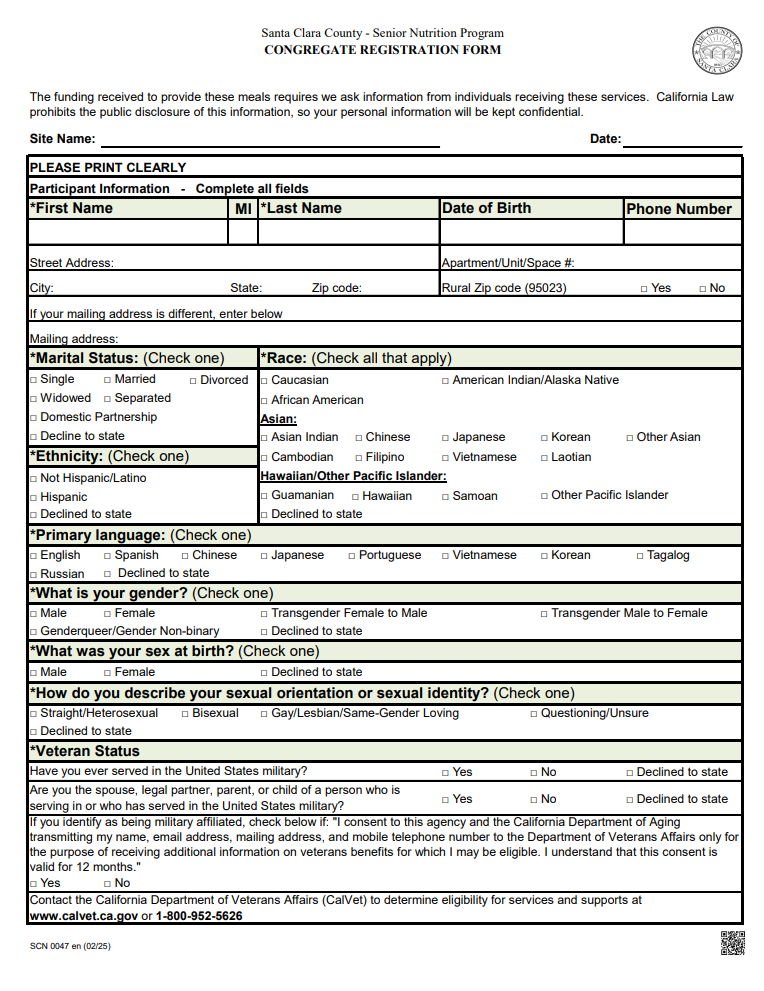
Form: Registration Form
Form: Nutrition Risk Assessment
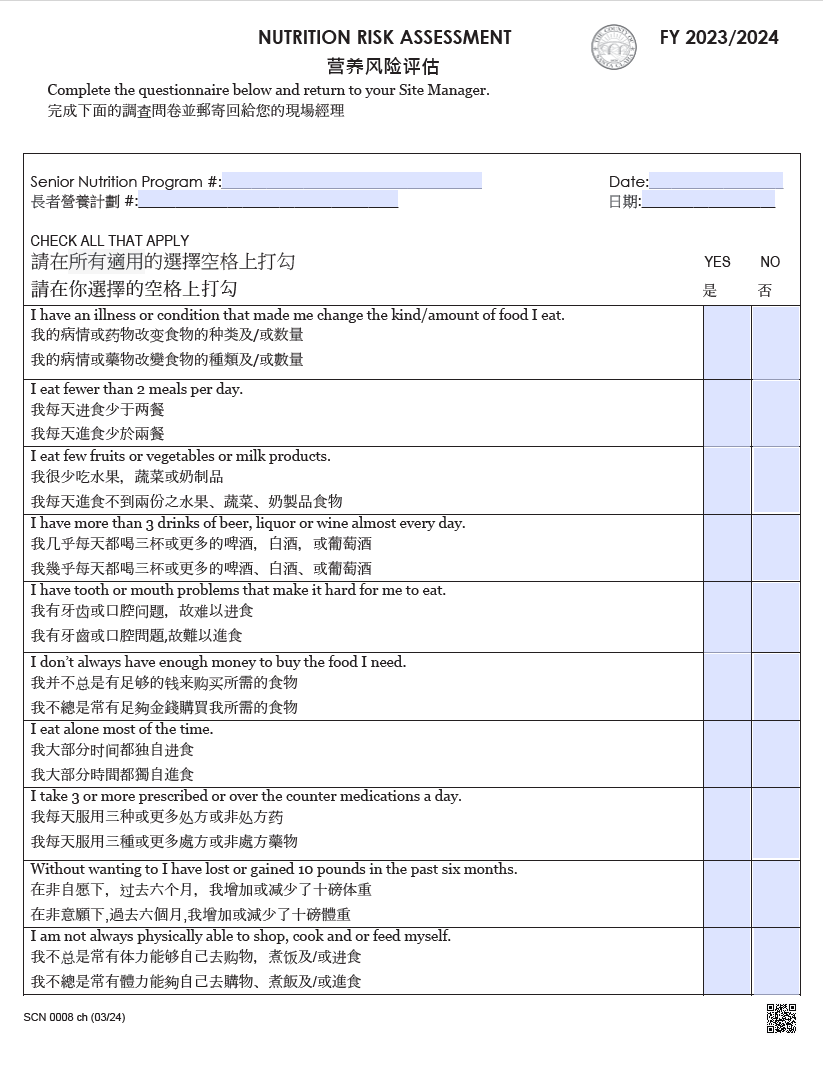
Nutrition Risk Assessment - English/Korean
Nutrition Risk Assessment - English/Portuguese
Nutrition Risk Assessment - English/Spanish/Vietnamese
Form: Meal Card Log
Form: Scanner Portal
Getting Started
- Open Safari in your apple device.
- Enter the URL: https://snpscanner.sccgov.org/
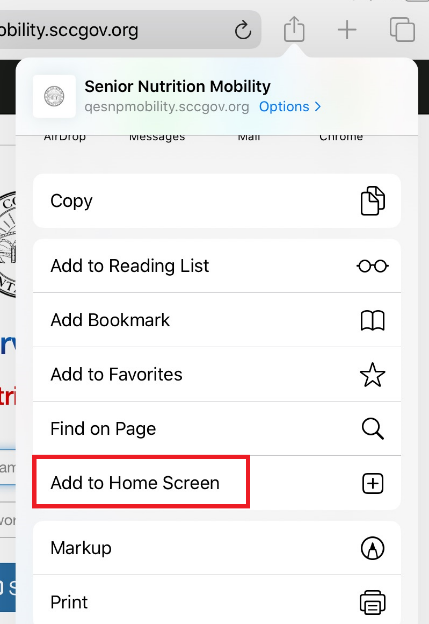
Create a Shortcut
- Click on the share button as shown below:

- Scroll and click on “Add to Home Screen”
- Enter the name you like to call the application and then click on Add.
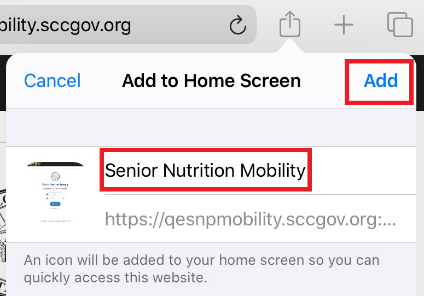
- You will see icon now in your home screen, which can be used to open the application, anytime.
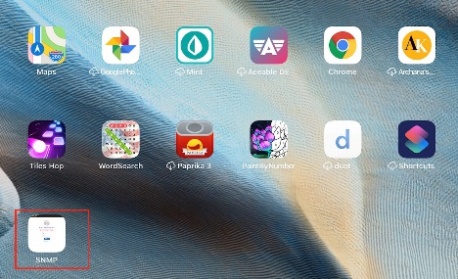
Sign into the application
- Click on the application shortcut to open the Sign In page
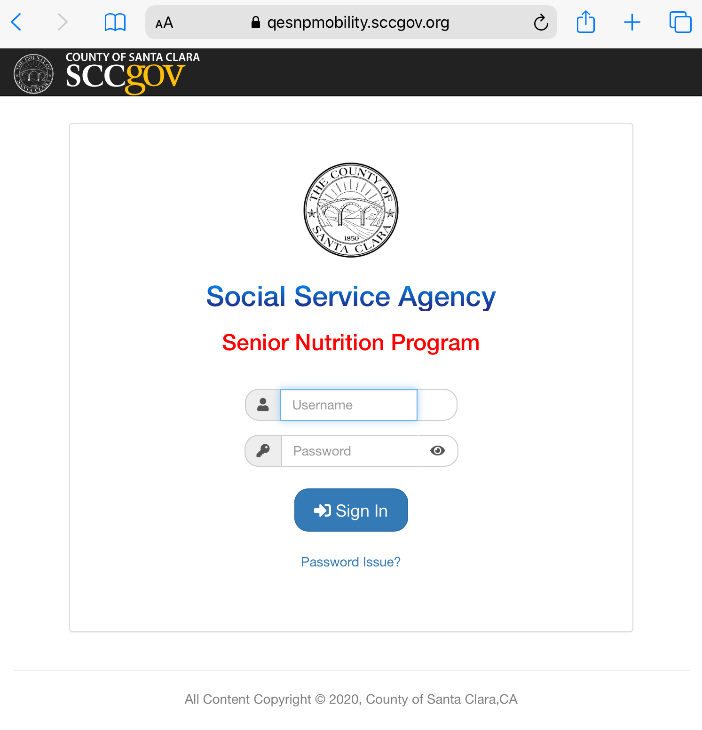
- Enter your provided username and password to login. Successful login will lead you to the barcode scanning page.
Note:- You will be able to make only 5 attempts of wrong login per session. If you make attempts more than that, you will be locked out of the system. In such a scenario, you should close the window and come back again after 30 minutes to start all over.
- If the scanner goes idle after logging in, the app will remain signed in for up to 5 minutes. (This has been temporarily increased to 10 minutes due to the pandemic).
- On a regular basis, the Username and/or Password will be reset. When this occurs, you will receive new Username and/or Password via email.
- If you need to reset the password, please contact Senior Nutrition Program.
Scan Barcode
Before scanning
- Make sure you have a well-lit place to scan.
- The barcode to be scanned should be on a stable and flat surface like a tabletop.
- When you scan, avoid shadows on the barcode.
- Hold the scanning device steady for proper scanning.
- There should be only 1 barcode visible through the camera view. When scanning from the Roster, using the ‘Enter Barcode’ Feature described in the next session or block the other barcodes.
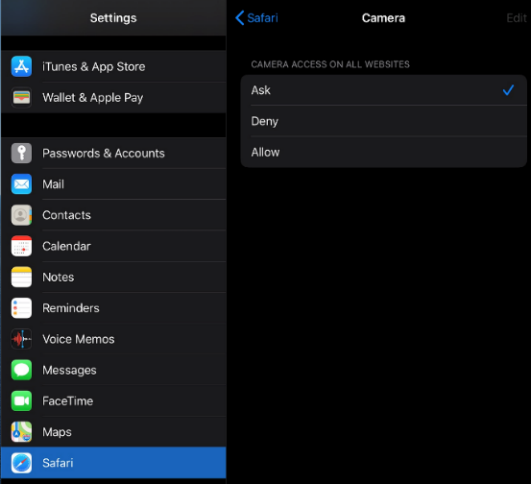
- Make sure you have camera accessibility for Safari by going into setting.
- Settings> Safari> Camera> Ask
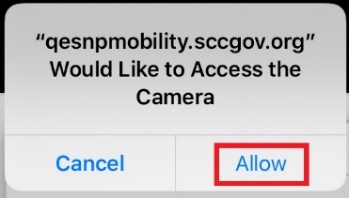
- In the scanning page you will be asked to allow camera access. Please click the Allow button to enable scanning.
- Once the camera is allowed, you will be able to see the camera ON through the square window.
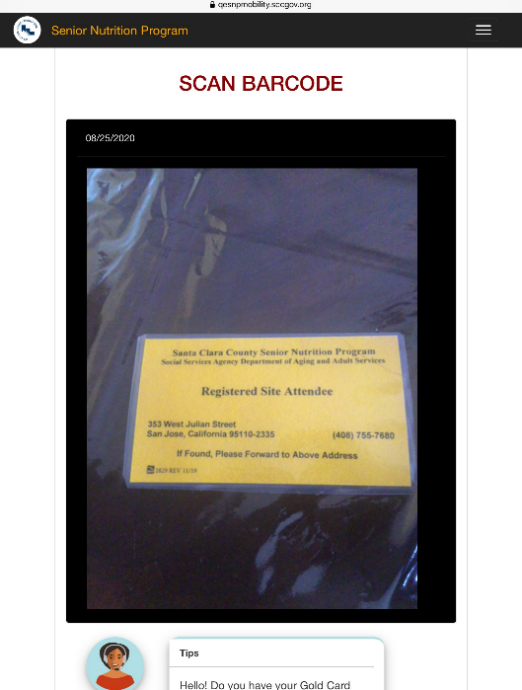
- Scroll down to read some tips.
- Flip the card to see the barcode and then focus the barcode to be scanned in the window. Make sure the barcode can be fully seen through the window and is visible.
- Slowly slide the device up/down to reach the correct height for the barcode to be scanned.
- When it reaches the right height, you will notice a sudden picture lock and success message will be displayed.
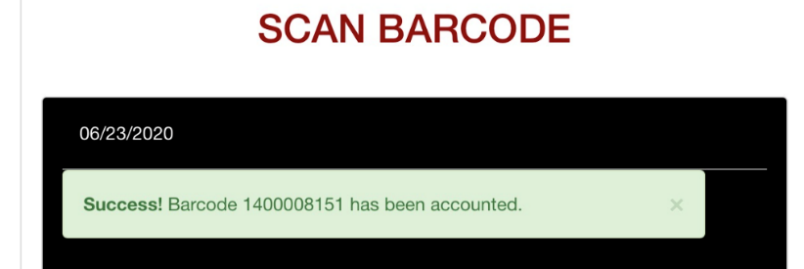
- To scan for another day, click on the date on the top left corner of the black camera window for the calendar dropdown to open, and pick any back date you want and continue the scanning process.
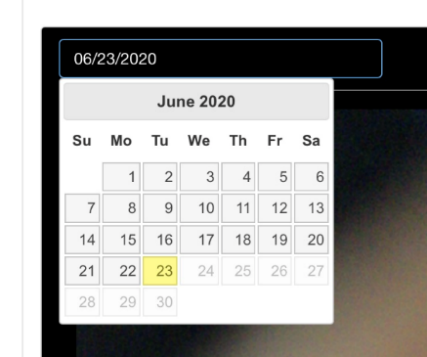
- Note: You will be able to scan a barcode only once for the day.
- If a barcode has been already scanned for the day and if you try to scan it again, the scanner will not respond.
- In case you want to scan it again, Sign Out of the application and log back in.
- If you are in Scan mode with the camera ON for a long time when idle, it can drain your battery.
Trouble Scanning:
Use the Enter Barcode feature by selecting it through the menu button at the top right and manually enter the customers barcode number.
Manual Entry
- Click the Menu button on the top right and select ‘Enter barcode’ page.
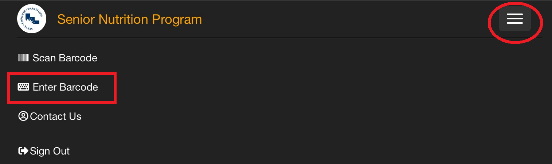
- You will be directed to the Enter barcode page.
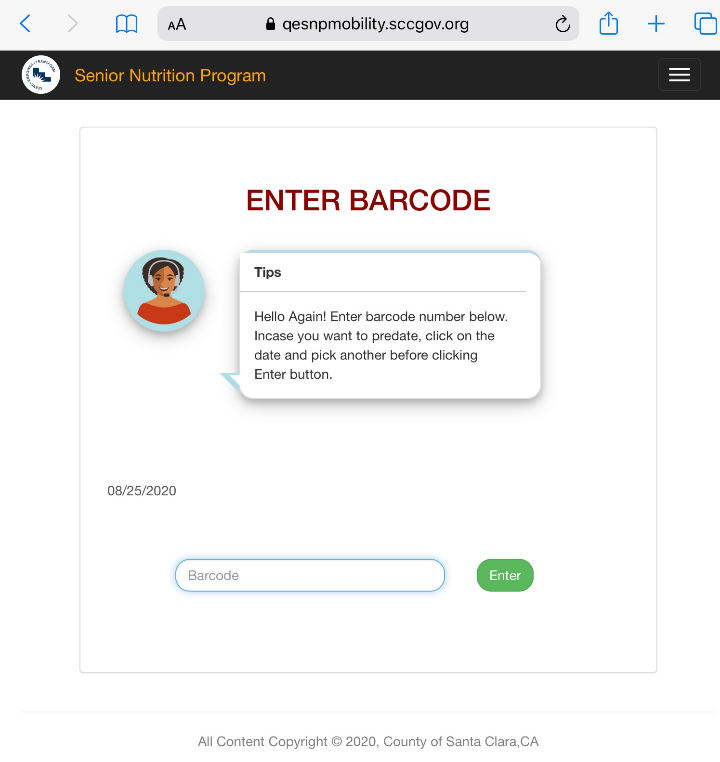
- In the text field enter the intended barcode number and click on Enter button to get the barcode accounted.
- If the entry was successful, you will get a success message.

- If the entry was unsuccessful, you will get an error message.
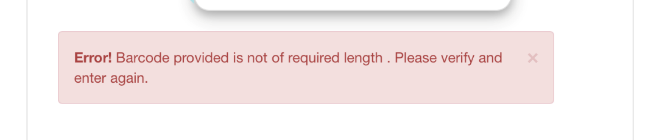
- To backdate an entry, click on the date on the top left of the barcode text field for the calendar menu to pop up.
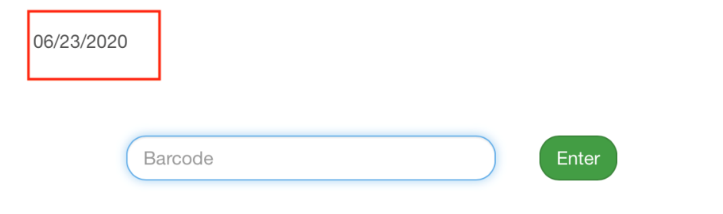
Select the date needed and then continue the accounting process.
Note: Barcodes should be always numeric and should be 10 digits. If a participant has an old ID number with only 9 digits, please contact snpregistration@ssa.sccgov.org and ask for a replacement ID number.
Contact Us
To report any issue or to reset password, you can contact us through the information in the ‘Contact Us’ page. To get to the contact us page click on the Hamburger menu at the top right and select the option Contact us.
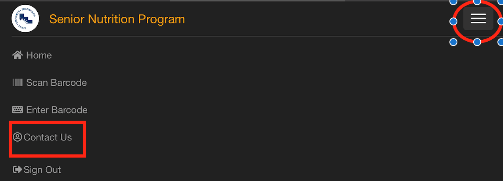
Sign Out
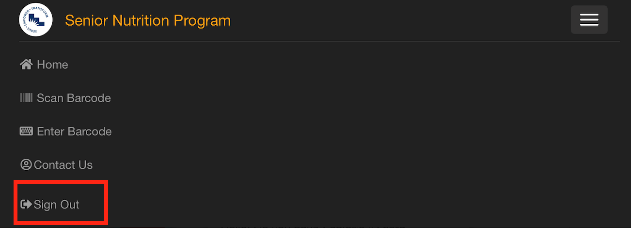
Ideally you should sign out of the application as soon as you finished using it. To sign out, from any page, click on the Hamburger menu at the top right and select the option Sign out.
Note: If the application session is idle too long, it will get automatically signed out.